Why image resolution matters before anything goes to print
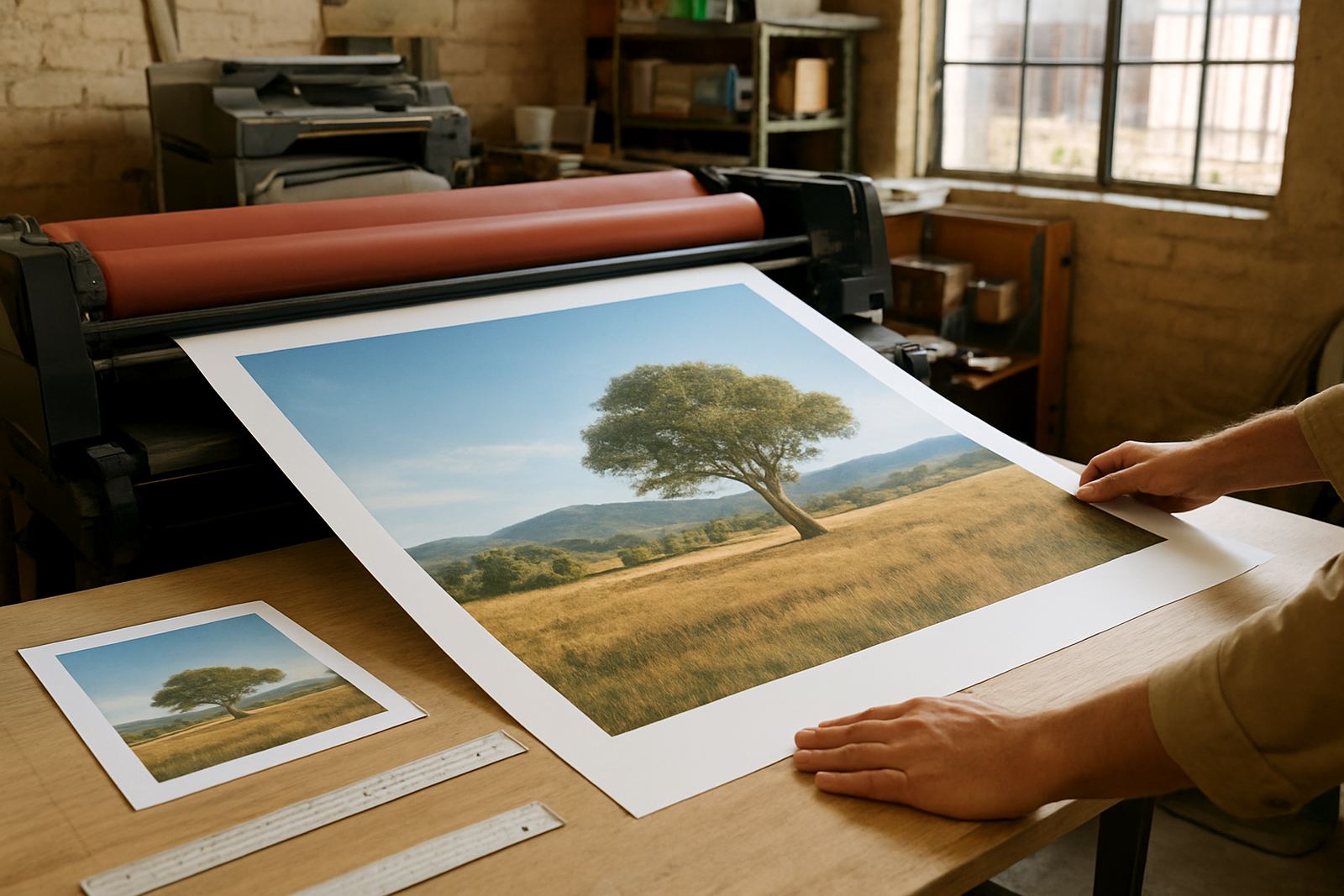
Resolution is the amount of detail in an image. In print, that detail is measured by how many dots or pixels are available for every inch of the final size. When a picture is stretched beyond its natural size, the edges lose sharpness and faces, logos and text can start to look fuzzy. That is why an image that looks fine on a phone screen may print badly on a business card or poster.
For West Rand businesses, this matters most when artwork is being reused across different sizes. A logo for a flyer may also need to sit on a banner at the Randfontein CBD or a poster for Mogale City. If the source file is too small, every larger version will show the same weakness. It is always better to start with a clean file than to try and fix a poor one after the layout is done.
The safest resolution targets for common print jobs
As a general rule, 300 dpi at final size is the safest target for most print work with photos or detailed artwork. That is the standard many printers expect for business cards, flyers, brochures, menus and forms. For large-format work like posters and banners, the viewing distance can allow a lower resolution, but the file still needs enough detail to hold up once it is enlarged.
- Business cards, flyers and brochures: 300 dpi at final size
- Posters viewed up close: 250 to 300 dpi at final size
- Large banners seen from a distance: 100 to 150 dpi can often work
- Logos, icons and line art: vector format is best where possible
If you are unsure, send the highest quality version you have. A good source file gives more room for proofing updates, cropping and layout changes. A low quality file may look acceptable on screen but still print soft once it is placed into a final design.
How to check whether your file is strong enough
Before you submit artwork, open the image and check its size and sharpness at the intended print size. Do not judge it only by what it looks like in a chat app or on a small preview. Zoom in to 100 percent and look for jagged edges, soft text and blocky colour patches. If the file is already blurry on screen, it will not improve in print.
A practical check is to ask three simple questions. Is the image large enough in pixels? Does it still look clean when enlarged? Is it saved in a format that keeps the detail intact? If the answer is no to any of these, it may need a replacement file or a redraw before print. This is common with older logos, WhatsApp images, screenshots and pictures copied from social media.
- Open the file at 100 percent zoom
- Check if text inside the image is readable
- Look for pixel edges around faces, shapes and logos
- Confirm the file is not a screenshot or compressed app image
- Compare the image size to the final print size
Photos, logos and screenshots do not behave the same
Photos are usually fine if they are high enough resolution, but logos are a different matter. A photo can sometimes be softened a little and still look acceptable, while a logo needs crisp edges. That is why artwork redraws are often needed for old business marks, especially when a logo started life as a tiny image from a phone or a social media page.
Screenshots are one of the biggest causes of poor print results. They carry the sharpness of your screen, not the sharpness needed for print. If a customer sends a screenshot of a flyer, menu or form, it often arrives with missing detail and rough edges. For the best result, use original artwork, original photos and clean layout files instead of copies of copies.
For stickers and small labels, the issue becomes even more noticeable because the print is compact and every pixel counts. Fine text, thin borders and small contact details can disappear quickly if the source file is weak. A cleaner file saves time at proofing stage and makes production smoother in a busy shop.
Practical steps to avoid blurred printing every time
If you are preparing files for print in Randfontein, the safest approach is to work from the largest original available. Do not enlarge a small image just to make it fit. That only spreads the same amount of detail over a bigger area. Instead, crop carefully, keep the original aspect ratio where possible and use proper file formats for final artwork.
When load-shedding or rushed turnaround puts pressure on a job, a few minutes spent checking the file can prevent a wasted print run. It is also worth planning ahead for proofing updates, especially on menus, brochures and event posters where text changes are common. A small correction on screen is easier than reprinting a full batch later.
- Use the original image file, not a forwarded copy
- Avoid enlarging small images beyond their natural size
- Keep logos in clean artwork files where possible
- Send photos from the camera or original source, not screenshots
- Ask for a proof before large quantities are printed
What to send with your enquiry so we can check resolution quickly
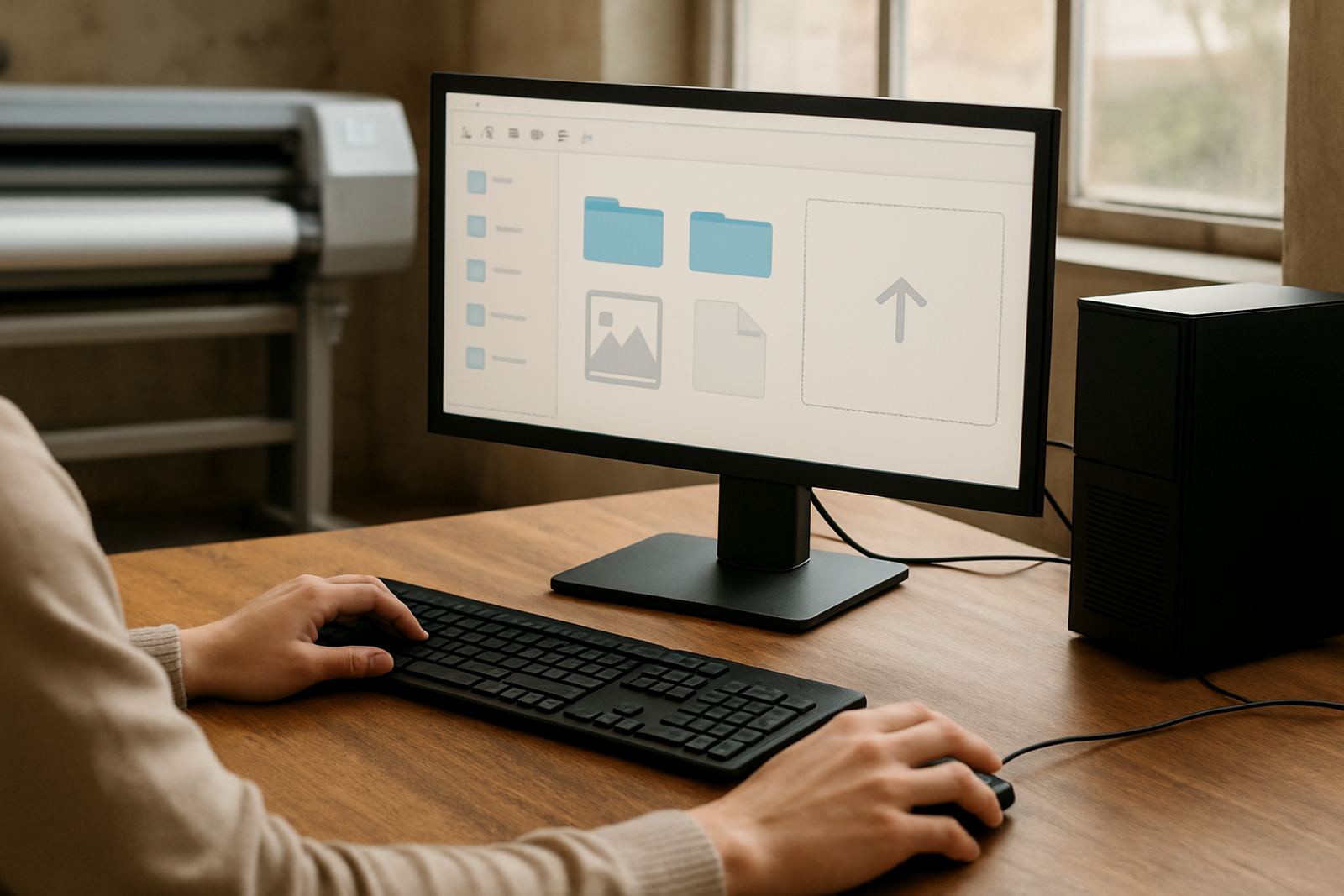
When you use the enquiry form on our contact page, include the final size you want printed and send every file in its original quality. If you have a logo, photo or layout that may be too small, mention it upfront so it can be checked before production starts. That saves time for businesses across Randfontein, Krugersdorp, Westonaria, Mogale City and Roodepoort who need quick turnaround work done properly.
If you are not sure whether a file is print ready, send it anyway and note what the job is for. A business card needs a much stricter file than a banner hanging outside a shop, and a poster for close viewing needs more detail than a roadside sign. We can advise on whether the file is suitable as is, needs proofing updates or needs to be redrawn.
Good resolution is not about making everything bigger. It is about matching the file to the final print size, so the finished work stays clean, readable and professional.