
What bleed means when a page goes to the cutter
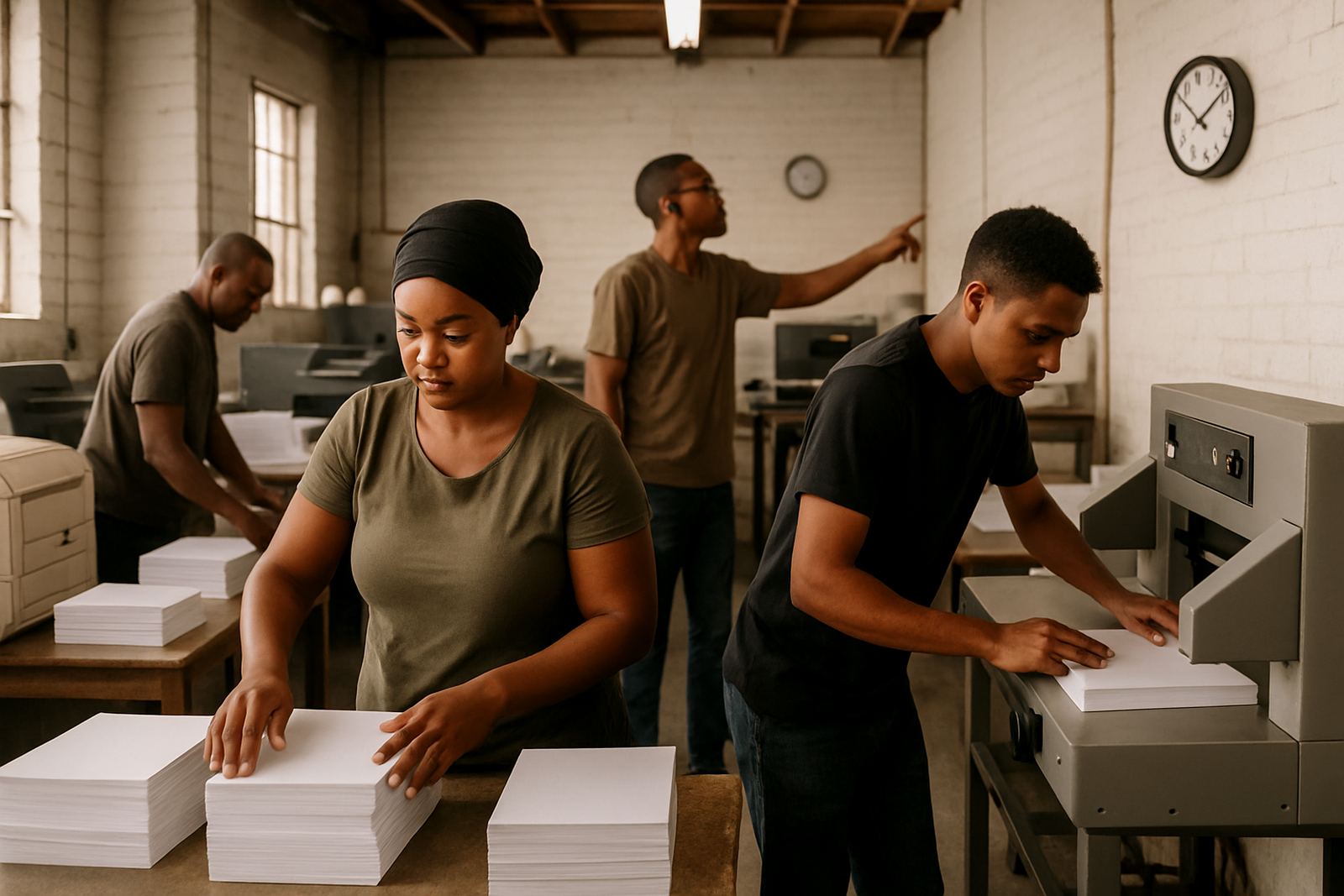
Bleed is the extra image or colour that runs past the finished edge of the item. It gives the guillotine or cutter room to trim the job without leaving a thin white line at the edge. That is important on full colour prints, solid backgrounds and anything with artwork right to the edge.
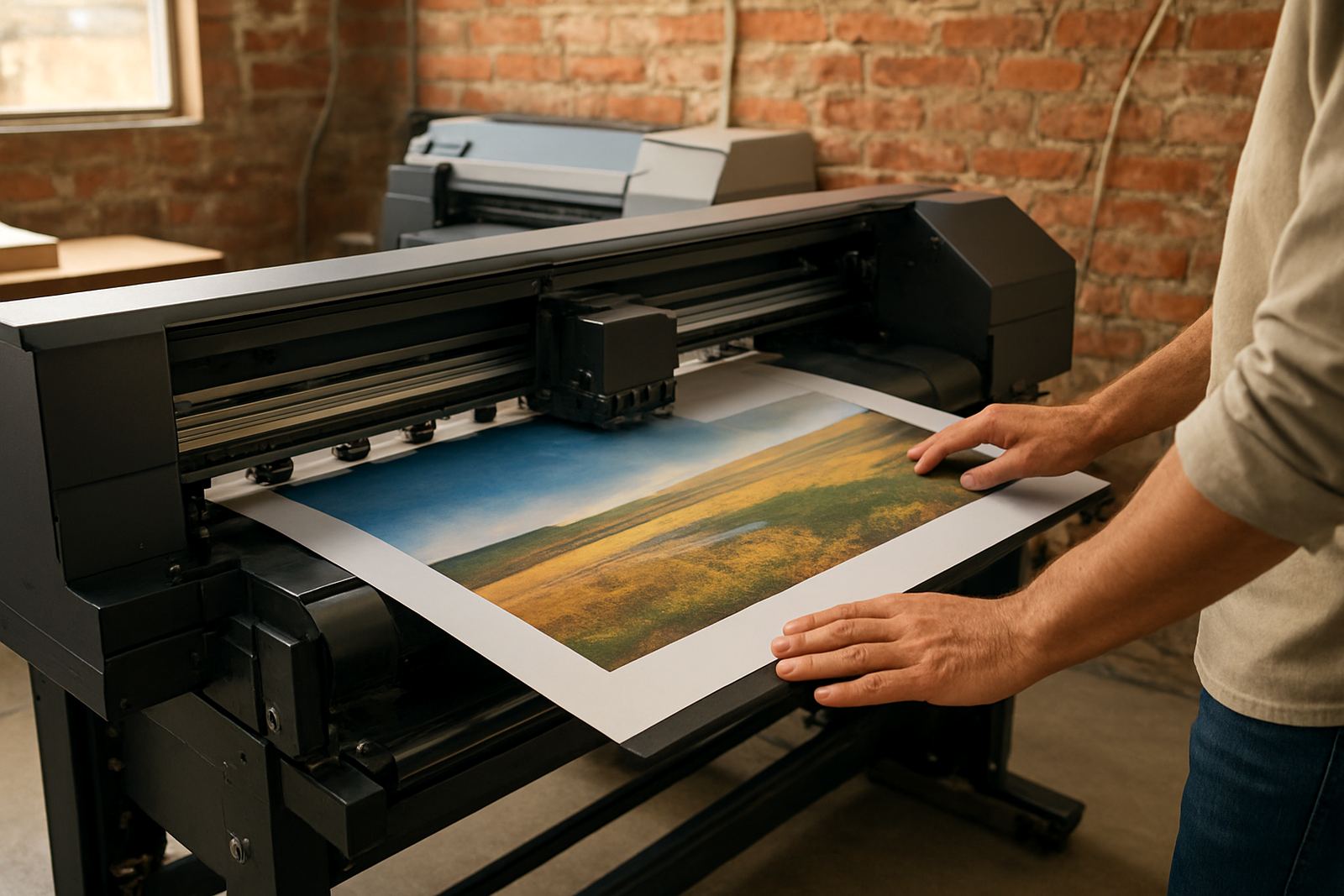
A common rule is to allow 3 mm bleed on standard digital print jobs. For larger items such as posters or banners, the amount can vary depending on the finishing method and size, so it is worth confirming the spec before artwork is finalised. If you are in Randfontein CBD and need a same day flyer run, bleed is one of the first things that should be checked before production starts.
- Bleed is not visible in the final trimmed piece.
- It prevents white edges if the cut moves slightly.
- It should be built into the artwork file, not added later by guesswork.
Why trim size is not the same as the artwork size
Trim size is the finished size of the item after cutting. Your artwork file is usually larger than that, because it includes the bleed area around the outside. If a business card is meant to finish at 90 x 50 mm, the supplied file may need to be 96 x 56 mm once bleed is added. The exact size depends on the job and the layout setup.
Many print problems happen when a client sends a file built only at the final size, with no extra room for trimming. If the image or background stops exactly at the edge, any small shift on the cutter can show up straight away. That can make a neat design look untidy, even when the print quality itself is good.
- Trim size is the final cut size.
- Artwork size includes bleed outside the trim.
- Final check marks should sit outside the visible design area.
Safe text areas keep names, numbers and logos intact
The safe area is the space inside the trim where all important content should stay. This includes names, contact details, logo marks, pricing and any text that must not be clipped. On a small item like a flyer or business card, this space matters even more because there is less room for cutting tolerance. Keep text well away from the edge, not just a little bit away.
A practical rule is to leave at least 3 to 5 mm inside the trim for standard digital print, and more for jobs that will be folded or bound. On a folded brochure, the safe area should be planned carefully around the fold line too, because text too close to a crease can be hard to read. One small mistake here can make a menu or brochure look rushed, even if the colours are spot on.
- Keep logos and headings inside the safe area.
- Avoid putting phone numbers or fine print close to the edge.
- Leave extra space near folds, holes or special finishing.
How bleed and margins affect common print items in the West Rand
Different products need different attention. Business cards need careful trimming because the format is small and precise. Flyers are often cut in stacks, so the cutter needs space to work cleanly across multiple sheets. Stickers often need a tidy border or die-cut line, while banners may need extra room for hems, eyelets or pole pockets. If the layout ignores these details, the final piece can end up looking off-centre or cramped.
For West Rand businesses, especially those doing quick promotions in Krugersdorp, Westonaria, Mogale City and Roodepoort, this matters when you are printing for a market day, trade counter, school event or local launch. A design that looks fine on screen can still fail in production if the cut marks, bleed and margins were not set properly from the start.
- Business cards need clean edge control.
- Flyers need background bleed and balanced text placement.
- Banners need allowance for finishing hardware and edge folding.
A Randfontein example: same day flyers for a local promotion
Imagine a Randfontein hardware supplier needing 1,000 flyers for a weekend special. The artwork has a dark blue background, a product image on the right and bold pricing on the left. If the design stops at the exact cut size, the blue might not reach the edge after trimming and the flyer can show a thin white line on one side. If the price sits too close to the edge, it may end up uncomfortable to read after cutting.
The better setup is simple: build in bleed around the artwork, keep the text inside the safe area and check the trim marks before printing. That way the job can go into production without delays and the finish stays consistent, even when the turnaround is tight. For local businesses working with load-shedding schedules and short lead times, that kind of prep saves stress.
It sounds small, but these details are what make a cheap looking print job look professional.
A quick checklist before you send artwork to print
If you are preparing artwork for a print run, a short check can prevent a lot of back-and-forth. You do not need to be a designer to spot the basics. Look at the page edge, the cut size and where your key details sit. If anything important is too close to the border, move it inwards before the file is sent off.
- Confirm the final trim size first.
- Set the bleed correctly on every side.
- Keep text and logos inside the safe area.
- Check that background colour or images extend into the bleed.
- Make sure folds, perforations and holes are planned for from the start.
If your file is being updated for print ready output, it is better to fix margin issues before production than after the first proof. Even a good design can print badly if the spacing is off. A careful prepress check usually takes less time than correcting a bad run later, and that is true for a small batch of stickers or a full stack of brochures alike.